
Website Guide for Organisers
A brief guide to using the content management system (CMS) to put details of your event onto the FVO website.
If, after you've had a look at the guide, you don't feel like using the CMS yourself, then don't worry - just contact web@fvo.org.uk (or someone else you know with access) and ask them to help you or do it for you.
Website Access
In order to access the CMS, you need to login here. Please contact web@fvo.org.uk to request a username/password if you don't have one.
Find Your Event
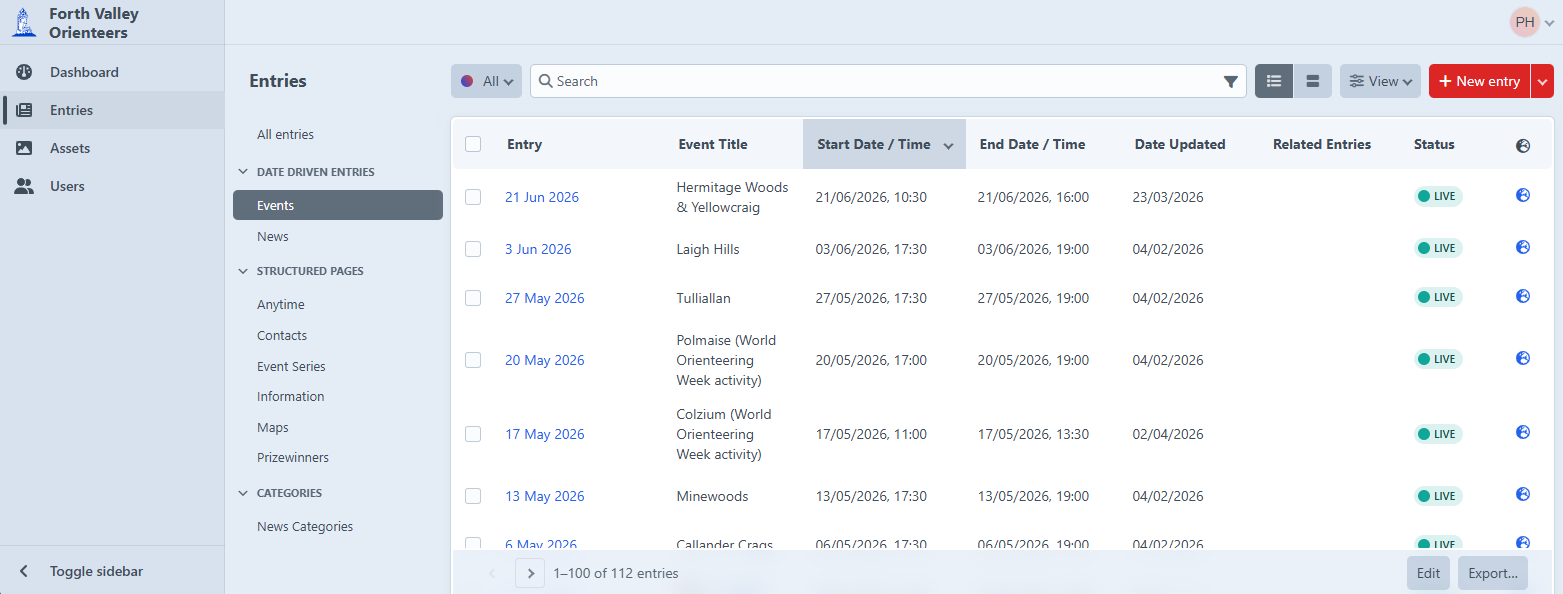
Once you're logged in, select Entries from the leftmost column and then Events from the next column under DATE DRIVEN ENTRIES (or just follow this link). You should then see a table showing all the events like this:
Edit your event - Content
Scroll down to find your event and click on the date link in the Entry column to be taken to the page for your event which will look like this:
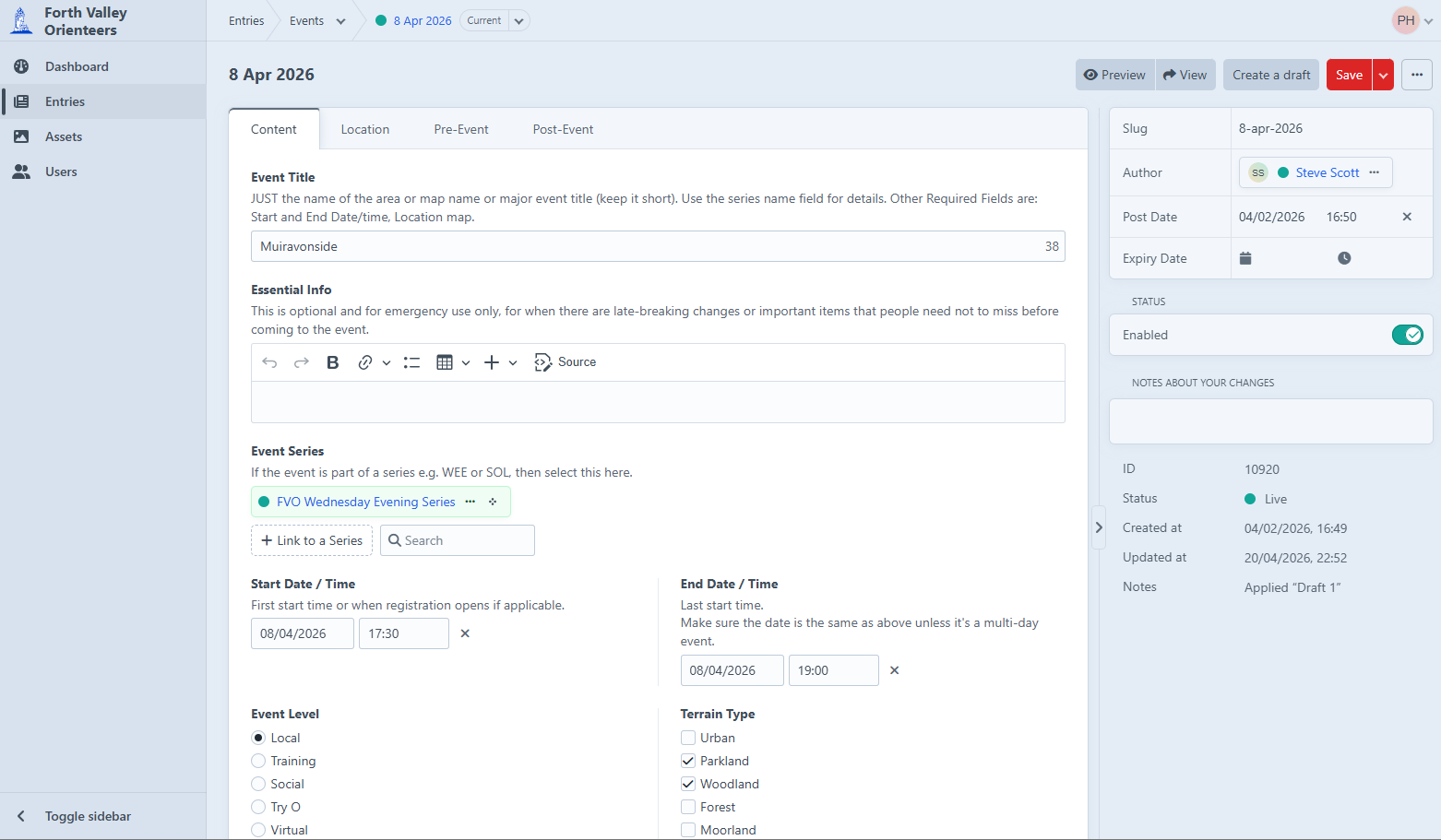
You will see there are four tabs underneath the event date - this first one is Content and is for the basic event info. Hopefully the fields are fairly self-explanatory to complete - there is helper text to explain what is expected and which fields are mandatory to complete.
I would avoid using the Essential Info field unless you have some last-minute or really important information you need everyone to read. And if you have a nice, relevant image for the event you can upload it in the Title Image field to make your event look a bit more attractive on the website.
When you're done with this tab, click on Location to move to the next.
Edit your event - Location
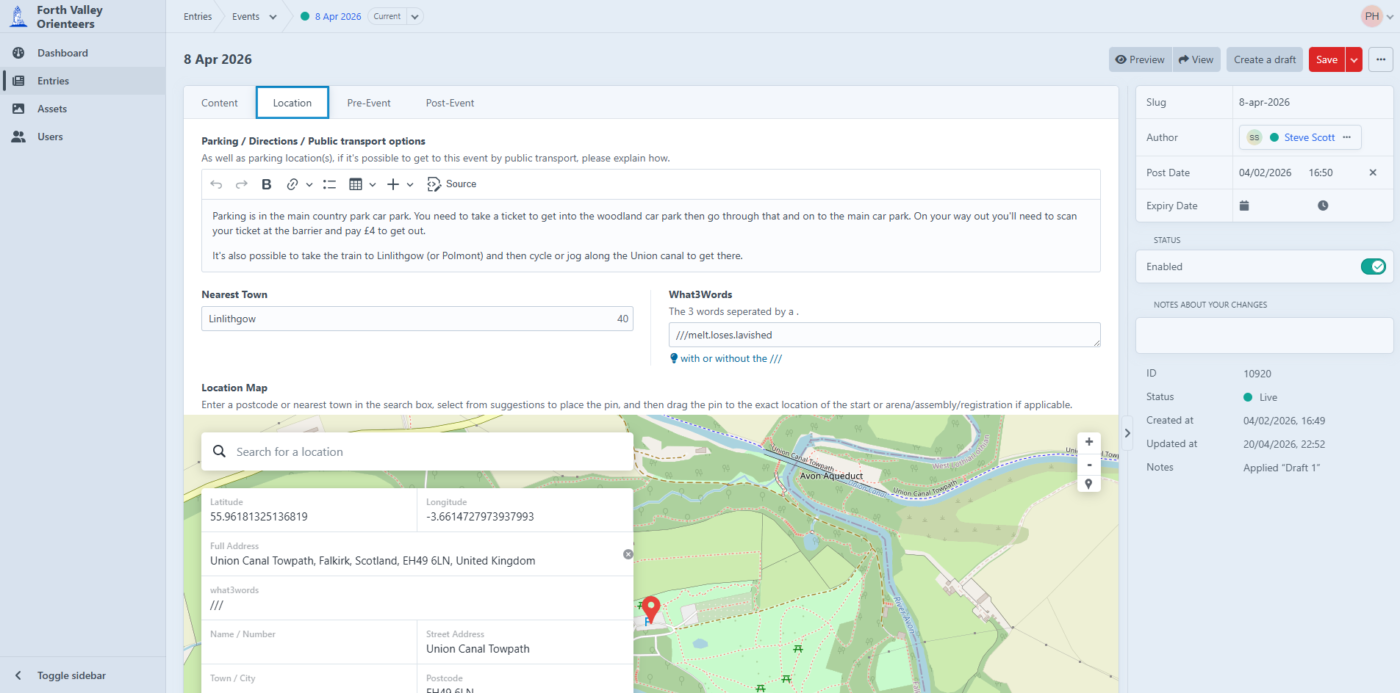
This is the tab to explain exactly where your event is and how to get there. Drag the little red location marker to exactly where you want people to park - this generates the 'interactive map' links on the website that people using to navigate to the event. You can also lookup the What3Words for the parking location and add them to the field above the map (the W3W field on the map doesn't work since they started charging for the plugin!)
If there's there additional information needed about how to get from the parking to assembly, please add this to the Parking/Directions field.
When you're done, click on Pre-Event to move to the last tab you need to complete.
Edit your event - Pre-Event
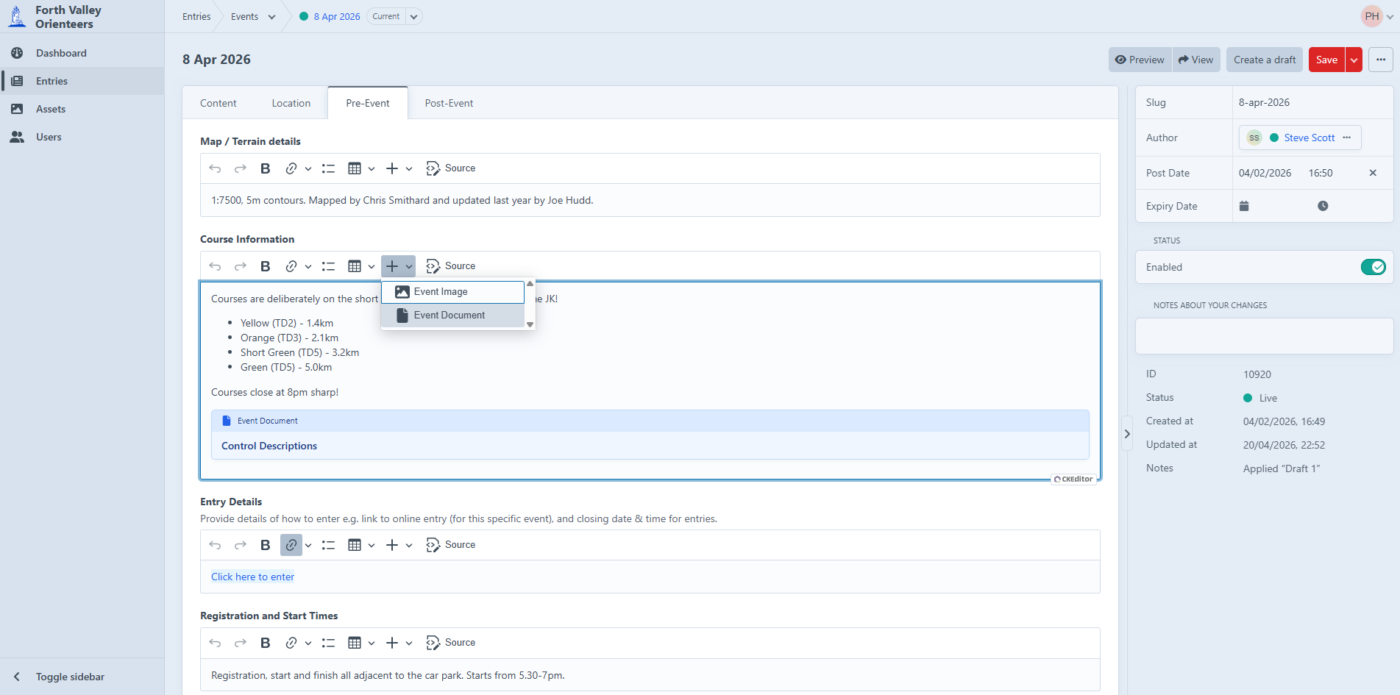
This tab should be quite straightforward to complete, and you only need to complete the fields that are relevant to your event. A couple of useful notes:
- You can use the 'plus' button in the toolbar of any of the fields to add images or documents - in this case a PDF of the control desciptions has been added to the Course Information field.
- Please add a link to the exact entry page for your event (on our in-house system or SiEntries etc.) so that people can just click and enter straightaway.
Finishing up
If you want to see what your event page looks like before you save it you can use either the Preview or View buttons in the top-right corner. Preview is quite nice if you have a wide monitor as you can see the rendered page updating live as you edit the fields.
Once you're done click the red Save button to save your changes. Remember you don't need to get all the information entered in one go, in fact it's better to add the basics like location, start times and entry link as soon as you know them, then come back later and fill in the details like course lengths.
If you have any problems with any of this, or you have suggestions for improvements, please contact web@fvo.org.uk.